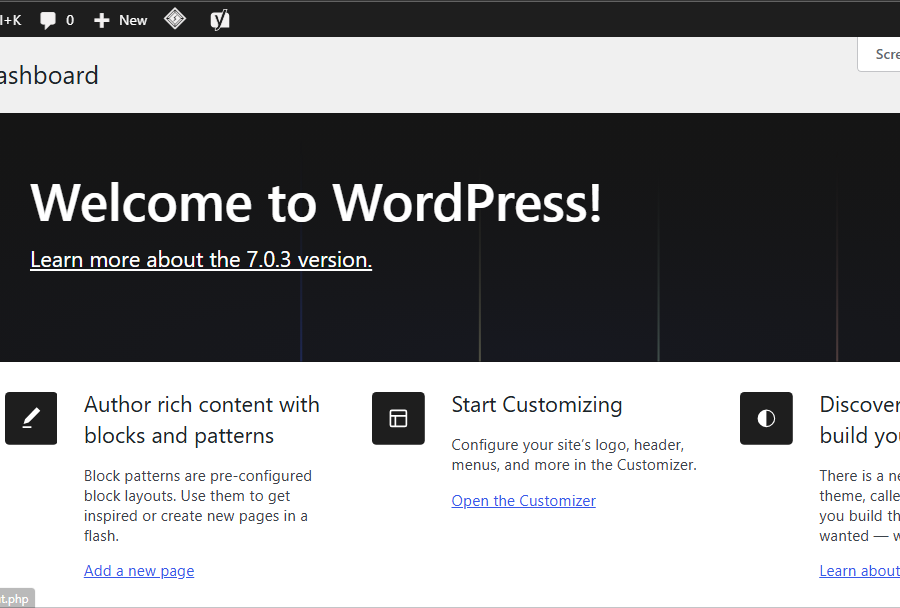
If you’ve spent any time researching how to build a website, you’ve probably run into the word “WordPress” more times than you can count. It powers an enormous share of the websites you visit every day — blogs, online stores, portfolios, news sites, and business pages — but if nobody has explained it to you clearly, the term can feel more confusing than helpful.
This guide is that explanation. By the end, you’ll understand exactly what WordPress is, how it works behind the scenes, why so many creators and businesses choose it, and what your first steps should look like if you decide to build a site of your own.
Here is how it works and how you can apply it.
What Is WordPress, Exactly?
WordPress is a content management system (CMS) — software that lets you create, edit, organize, and publish content on a website without writing code for every single page.
Think of it this way: without a CMS, adding a new page to a website means writing raw HTML and uploading it to a server by hand. With WordPress, you log into a dashboard, write your content in a simple editor, click “Publish,” and the system handles the rest — generating the page, applying your site’s design, and making it live for visitors.
WordPress is open-source, meaning the underlying software is free to use, modify, and distribute. It’s maintained by a large global community of developers rather than a single company, which is a big part of why it has grown into such a flexible platform.
WordPress.org vs. WordPress.com (The #1 Source of Confusion)
Almost every beginner runs into this mix-up at some point, so it’s worth clearing up early.
- WordPress.org is the free, self-hosted software. You download it, install it on a web host of your choice, and have full control over your design, plugins, and code.
- WordPress.com is a commercial hosting service, built on top of the WordPress.org software and run by a company called Automattic. It offers managed hosting plans, from a limited free tier up to paid plans with more control.
When people talk about “using WordPress” for a serious blog or business site, they are almost always talking about the self-hosted WordPress.org software. That’s also the version this guide — and the rest of AdiGunawan.com’s WordPress content — focuses on.
Example: If you install WordPress on hosting from a company like Hostinger or SiteGround and manage everything yourself, that’s WordPress.org. If you sign up directly at WordPress.com and let Automattic host your site for you, that’s WordPress.com.
Why WordPress Matters
WordPress isn’t just popular by coincidence. A few things explain why it has become the default choice for so many creators and businesses:
- A massive ecosystem. Thousands of themes and plugins exist to handle almost any design or functionality need, from a simple portfolio to a full online store.
- A large support community. Because so many people use WordPress, it’s easy to find tutorials, forums, and freelancers who know the platform.
- A low barrier to entry. You don’t need to know how to code to publish a professional-looking website.
- Room to grow. WordPress can power a simple personal blog just as easily as a complex e-commerce store or membership site, so you’re not likely to outgrow it quickly.
(Note: WordPress’s exact market share shifts over time and is tracked by third-party sources like W3Techs — worth a quick check if you want the current figure, but the platform’s dominance in the CMS space has been consistent for years.)
A Short History of WordPress
Understanding where WordPress came from helps explain why it works the way it does today.
- 2003 — WordPress was released by Matt Mullenweg and Mike Little, built as a fork of an earlier blogging tool called b2/cafelog.
- Early years — WordPress started as blogging software, focused on chronological posts.
- 2010 — Custom post types and custom taxonomies were introduced, allowing WordPress to manage non-blog content like products, portfolios, and testimonials.
- 2018 (version 5.0) — WordPress launched the Block Editor, codenamed “Gutenberg,” replacing the old single-textbox editor with a flexible, block-based system.
Since then, WordPress has continued expanding block-based editing to entire site templates through a feature called Full Site Editing (FSE), and has grown a REST API that lets developers use WordPress as a backend for non-WordPress frontends — an approach known as “headless WordPress.”
How WordPress Works (Simplified)
You don’t need to understand server architecture to use WordPress, but a basic mental model helps everything else make sense.
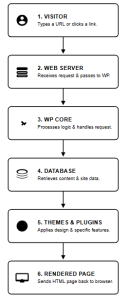
- A visitor types in your website’s address or clicks a link to your site.
- The request reaches your web server, which hands it off to WordPress.
- WordPress connects to its database, where all your content, settings, and site data are stored.
- WordPress figures out which content matches the request and pulls it from the database.
- Your active theme renders that content using its templates and styling.
- Any active plugins can step in along the way to add features or modify the output.
- The finished page is sent to the visitor’s browser.
In short: content lives in a database, themes control how it looks, and plugins control what it can do. Those three pieces working together are the foundation of every WordPress site.
The Core Building Blocks of WordPress
Themes
A theme controls your site’s visual appearance — layout, typography, colors, and overall design. Switching themes can completely change how your site looks while keeping your content exactly the same.
Example: You could redesign an entire blog’s look in an afternoon just by switching from one theme to another, without rewriting a single blog post.
Plugins
Plugins are add-ons that extend what your site can do, without you needing to write custom code. Need a contact form? An SEO tool? An online store? There’s almost certainly a plugin for it.
Example: WooCommerce is a plugin that turns a standard WordPress site into a fully functional online store.
The Block Editor (Gutenberg)
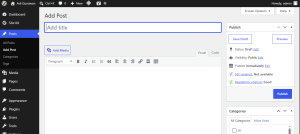
This is where you’ll actually write and design your content. Instead of one long text box, you build pages and posts out of individual blocks — a paragraph block, an image block, a heading block, a quote block, and so on — each of which you can configure and rearrange independently.
Posts vs. Pages
This trips up a lot of beginners, so it’s worth memorizing early:
| Posts | Pages | |
|---|---|---|
| Purpose | Time-based content (blog entries) | Static, standalone content |
| Examples | Blog articles, news updates | About page, Contact page |
| Organization | Categories and tags | Usually hierarchical (parent/child) |
| Appears in feeds/archives | Yes, by default | No |
Taxonomies (Categories and Tags)
Taxonomies are how you group and organize your content. Categories are typically broad and hierarchical (e.g., “WordPress” as a category with “Plugins” as a sub-category). Tags are more specific and non-hierarchical, used to label finer details across posts.
What Can You Actually Build With WordPress?
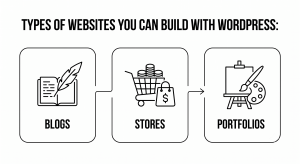
A common misconception is that WordPress is “just for blogs.” In reality, it handles a much wider range of projects:
- Blogs and publications — personal blogs, niche sites, media outlets.
- Business and marketing websites — brochure sites, lead-generation pages.
- Online stores — via plugins like WooCommerce.
- Membership sites and online courses — gated content and learning platforms.
- Portfolios — for designers, photographers, and freelancers.
- Nonprofit and community sites — informational and donation-driven pages.
This flexibility comes from custom post types, which let WordPress manage structured content — products, testimonials, portfolio pieces — well beyond the standard blog post format.
Getting Started: What a First WordPress Site Actually Looks Like
Here’s a simplified version of the beginner workflow once WordPress is installed:
- Log in to your wp-admin dashboard.
- Choose and install a theme that fits your site’s purpose.
- Install a small set of essential plugins (SEO, security, backups).
- Go to Posts → Add New to create your first post using the Block Editor.
- Assign a category and relevant tags.
- Set a featured image.
- Preview the post to check formatting.
- Click Publish.
That’s the core loop you’ll repeat for most content on your site.
Common Mistakes Beginners Make
- Installing too many plugins. More plugins doesn’t mean a more powerful site — it often means slower performance and a higher chance of conflicts. Install only what you genuinely need.
- Skipping backups. Backups feel unnecessary right up until something breaks. Set up automated backups from day one.
- Editing a theme’s core files directly. If you customize a theme this way, a future theme update will wipe out your changes. Use a child theme instead.
- Ignoring updates. Outdated core software, themes, or plugins are one of the most common security risks. Update regularly, ideally testing major updates on a staging site first.
- Using weak login credentials. Avoid generic usernames like “admin” and use strong, unique passwords plus two-factor authentication.
Best Practices for a Healthy WordPress Site
- Keep WordPress core, themes, and plugins updated.
- Limit active plugins to what you actually need.
- Use strong, unique login credentials and limit admin accounts.
- Take regular, automated backups stored off-server.
- Use a child theme rather than editing a parent theme directly.
- Choose actively maintained plugins — check the last-updated date, not just download counts.
- Use HTTPS across your entire site.
These practices are widely recommended across the WordPress community; they’re not universal rules, but they’ll save you real headaches as your site grows.
Conclusion
At its core, WordPress is a tool that separates your content from your design, so you can focus on building and growing your site without needing to be a developer. Once you understand the relationship between core, themes, and plugins — and the difference between WordPress.org and WordPress.com — the rest of the platform becomes much easier to navigate.
From here, the next practical step is choosing your hosting and actually installing WordPress, which we’ll walk through in the next guide in this series.