Why Is My WordPress Site Slow?
A slow WordPress site isn’t just annoying — it affects how long visitors stick around, how well your pages convert, and how search engines evaluate your site. If you’ve noticed your pages dragging, the good news is that slow WordPress sites almost always trace back to a small set of common, fixable causes.
This guide walks through the most frequent culprits, in the order most worth checking first, so you can diagnose the problem instead of guessing.
Here is how it works and how you can apply it.
Start Here: Confirm It’s Actually Slow
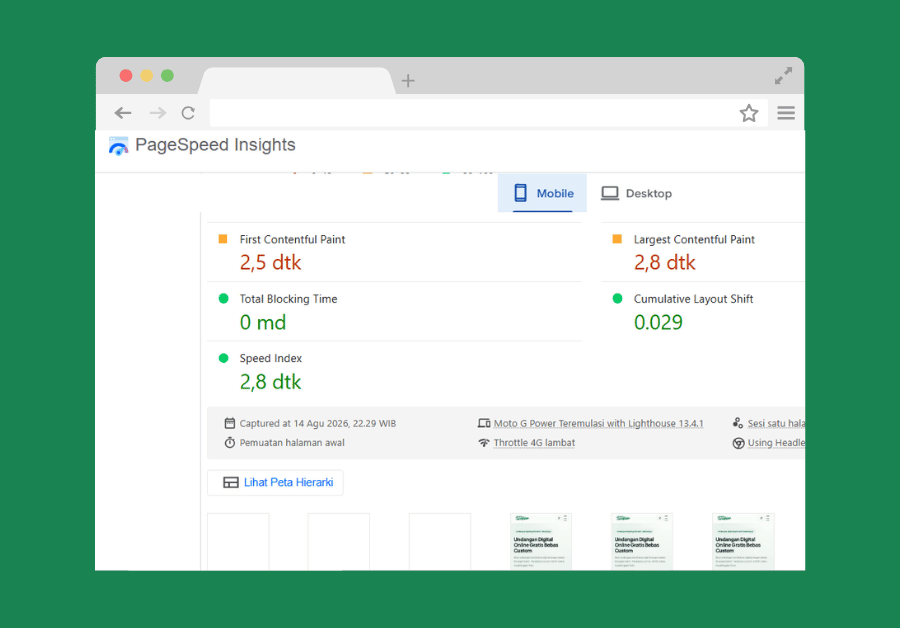
Before troubleshooting, get an objective baseline using a free page speed testing tool. Look at:
- Load time — how long the page takes to become usable.
- Page size — total data the page has to load.
- Number of requests — how many separate files (images, scripts, styles) the page loads.
This gives you a concrete starting point and a way to measure whether your fixes are actually working.
Cause #1: Hosting That Doesn’t Match Your Site’s Needs
Hosting is often the single biggest factor in site speed. If you’re on basic shared hosting with a growing, busy site, the server itself may simply be under-resourced for your traffic.
How to check: If your site is slow even on a freshly loaded, uncached page with minimal plugins, hosting is a strong suspect.
Fix: Consider upgrading to managed WordPress hosting, which is specifically optimized for WordPress performance. See our guide on shared hosting vs. managed WordPress hosting for a full comparison.
Cause #2: No Caching in Place
Without caching, WordPress rebuilds each page from scratch on every visit — querying the database, processing PHP, and assembling the page every single time. Caching stores a ready-made version of the page so it can be served instantly instead.
How to check: If your site feels noticeably faster the second time you load a page (in some setups) or if you don’t have a caching plugin installed at all, this is likely a factor.
Fix: Set up a caching plugin. See our guide on how to set up caching on WordPress for a step-by-step walkthrough.
Cause #3: Oversized, Unoptimized Images
Large, uncompressed images are one of the most common — and most fixable — causes of slow page loads, since images often make up the bulk of a page’s total size.
How to check: Run a page speed test and check which specific resources are the largest; images are frequently the top offender.
Fix:
- Compress images before uploading.
- Use appropriately sized images rather than uploading oversized originals and letting WordPress scale them down visually.
- Consider a modern image format and enable lazy loading (many themes and hosts now handle this automatically).
Cause #4: Too Many (or Poorly Coded) Plugins
As covered in our complete guide to WordPress plugins, plugin count alone isn’t the real issue — plugin quality and necessity are. A handful of poorly coded or redundant plugins can slow a site down far more than a larger number of lightweight, well-maintained ones.
How to check: Temporarily deactivate plugins one at a time (ideally on a staging site) and re-test speed after each, to identify which ones have the biggest impact.
Fix: Remove plugins that duplicate functionality, and replace poorly performing plugins with better-maintained alternatives.
Cause #5: An Outdated PHP Version
WordPress performance improves significantly with modern PHP versions. Sites running on old PHP versions often see slower execution across the board, even with everything else optimized.
How to check: Ask your host, or check your hosting control panel, for your site’s current PHP version.
Fix: Update to the latest PHP version your theme and plugins support — most hosts allow this through a simple control panel setting.
Cause #6: No Content Delivery Network (CDN)
Without a CDN, every visitor’s request travels to your server’s single physical location, regardless of where they are in the world. A CDN distributes copies of your site’s static files across multiple global locations, serving visitors from the nearest one.
How to check: If your site is notably slower for visitors in regions far from your server’s location, a CDN is likely to help.
Fix: Many caching plugins and managed hosts include CDN integration; enabling it is often a matter of a single setting.
Cause #7: Database Bloat
Over time, WordPress databases accumulate excess data — post revisions, spam comments, expired transients — that can slow down database queries, especially on content-heavy sites.
How to check: If your site has been running for years without any database maintenance, this is worth investigating.
Fix: Use a reputable cleanup plugin (or your caching/security plugin’s built-in tools) to clear unnecessary post revisions, transients, and spam comments.
A Practical Diagnostic Order
If you’re not sure where to start, work through these roughly in order of typical impact:
- Run a baseline speed test.
- Check and optimize images.
- Confirm caching is active and configured correctly.
- Check your PHP version.
- Audit plugins for redundancy or known performance issues.
- Consider a CDN if you have a geographically distributed audience.
- Address database bloat if the site has been running a long time without maintenance.
- If none of the above resolves it, revisit whether your hosting plan actually fits your site’s traffic.
Common Mistakes Beginners Make
- Installing multiple caching plugins at once, which often conflicts rather than compounding the benefit.
- Uploading full-resolution photos straight from a camera or phone without any compression.
- Blaming plugins broadly instead of testing individually, missing the specific one actually causing the slowdown.
- Never checking PHP version, leaving an easy, no-cost performance gain unclaimed.
- Assuming a slow site is always a hosting problem, when it’s frequently a combination of unoptimized images, missing caching, and plugin bloat.
Best Practices
- Test your site’s speed regularly, not just when you notice a problem.
- Compress and properly size images before uploading, every time.
- Keep caching active and correctly configured at all times.
- Periodically audit plugins for necessity and performance impact.
- Stay current on PHP version updates alongside WordPress core updates.
Conclusion
A slow WordPress site is almost always explainable by one or more of a small set of common causes: hosting, caching, images, plugins, PHP version, CDN coverage, or database bloat. Work through them methodically, starting with a real speed test, and you’ll typically find — and fix — the bottleneck without needing to guess.
Leave a Reply
You must be logged in to post a comment.