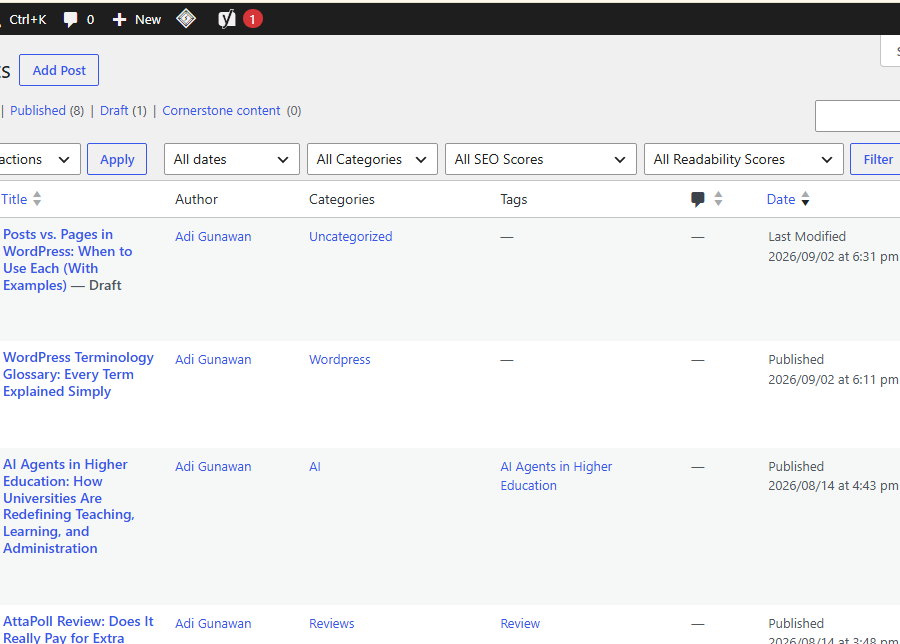
If you’ve spent any time in the WordPress dashboard, you’ve noticed two very similar-looking menu items: Posts and Pages. They both let you create content using the same Block Editor, which makes the distinction confusing for a lot of beginners — especially since WordPress doesn’t stop you from using either one “incorrectly.”
But the choice matters more than it looks. It affects how your content is organized, how it’s found by visitors, and how well it performs for SEO. This guide breaks the distinction down clearly, with practical examples for the situations you’re most likely to run into.
Here is how it works and how you can apply it.
The Core Difference
- Posts are time-based, typically chronological content — think blog entries. They support categories and tags, and by default, they appear in feeds, archives, and your homepage (if it’s set to show recent posts).
- Pages are static, standalone content — think About, Contact, or a Services page. They’re generally not date-driven, and they’re often organized hierarchically (a page can have “parent” and “child” pages) rather than through categories and tags.
A simple way to remember it: if the content is meant to be discovered over time as part of an ongoing stream, it’s a Post. If it’s meant to exist as a fixed, standalone destination, it’s a Page.
Posts vs. Pages at a Glance
| Posts | Pages | |
|---|---|---|
| Best for | Blog articles, news, updates | About, Contact, Services, Home |
| Time-based | Yes — dated and typically chronological | No — generally evergreen |
| Organization | Categories and tags | Often hierarchical (parent/child) |
| Appears in feeds/archives | Yes, by default | No |
| Typical update frequency | Ongoing, new ones added regularly | Occasional, updated as needed |
When to Use a Post
Use a Post whenever the content is meant to be part of an ongoing stream — something readers might browse chronologically, filter by topic, or find through your blog feed.
Examples of good Post use:
- “How to Install WordPress (Step-by-Step)”
- “5 Common WordPress Security Mistakes to Avoid”
- A company announcement or product update
- A news roundup or industry commentary piece
Posts are also where categories and tags do their real work — grouping related articles together so readers (and search engines) can understand how your content connects.
When to Use a Page
Use a Page for content that functions more like a fixed destination than an article — something that doesn’t need to appear in a chronological feed and typically doesn’t change often.
Examples of good Page use:
- Homepage
- About page
- Contact page
- Services or Pricing page
- Privacy Policy or Terms of Service
- A landing page for a specific campaign
Pages can also be hierarchical. For example, a “Services” page could have child pages like “Web Design” and “SEO Consulting” nested beneath it, creating a clear structural relationship.
What About Custom Post Types?
If Posts and Pages don’t quite fit what you’re building, WordPress offers a third option: Custom Post Types (CPTs). These let you create structured content types beyond the default two — Products, Portfolio Items, Testimonials, Recipes, and so on.
Example: An online store built with WooCommerce uses a “Product” custom post type instead of forcing every product listing into the Posts or Pages structure. This gives products their own fields, templates, and organization suited to e-commerce.
You won’t need custom post types for a typical blog or small business site starting out, but it’s worth knowing they exist as your site grows more complex.
A Practical Test: Which One Should You Use?
Ask yourself these two questions:
- Is this content time-sensitive or part of an ongoing series? → If yes, it’s almost certainly a Post.
- Is this content meant to be a fixed, findable destination on your site (like a menu item)? → If yes, it’s almost certainly a Page.
Example scenario: You’re launching a bakery website. Your “About Our Bakery” content is a Page — it’s static and belongs in your main navigation. Your weekly “New Seasonal Menu” announcements are Posts — they’re time-based and meant to accumulate in a blog feed over time.
Common Mistakes Beginners Make
- Using Pages for blog content, which removes it from your feeds, categories, and tags — making it harder for readers to browse and for search engines to understand your site’s topical structure.
- Using Posts for core site pages like About or Contact, which can cause them to get buried under newer blog content instead of staying prominently accessible.
- Ignoring categories and tags on Posts, missing an easy opportunity to organize content and support internal linking.
- Creating a deep, confusing hierarchy of Pages when a simpler, flatter structure would be easier for visitors to navigate.
- Forgetting to set a homepage properly in Settings, leaving the default “latest posts” view active when a static Page homepage was intended (or vice versa).
Best Practices
- Reserve Pages for genuinely static, structural content — your core site “skeleton.”
- Use Posts for anything time-based, and take advantage of categories and tags to keep them organized.
- Keep your Page hierarchy shallow and intuitive — most sites need no more than one or two levels of parent/child pages.
- Set your homepage deliberately under Settings → Reading, choosing either a static Page or your latest Posts based on your site’s purpose.
- If you find yourself forcing content into Posts or Pages that doesn’t quite fit either, that’s often a sign you need a custom post type.
Conclusion
The Posts vs. Pages decision is one of the first structural choices you’ll make in WordPress, and getting it right early saves you from reorganizing your site later. As a quick rule: if it’s time-based and part of an ongoing stream, it’s a Post; if it’s a fixed, standalone destination, it’s a Page. Once that distinction is second nature, the rest of your content planning gets a lot easier.
Leave a Reply
You must be logged in to post a comment.