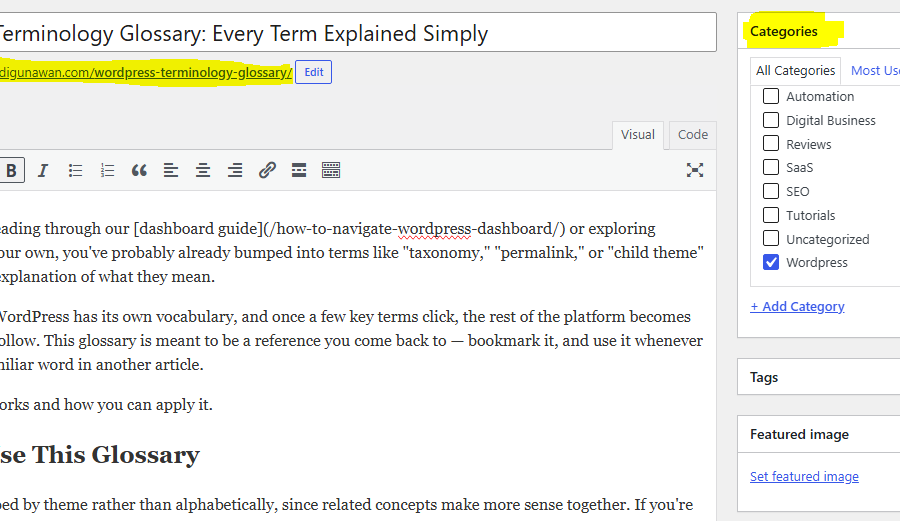
If you’ve been reading through our [dashboard guide](/how-to-navigate-wordpress-dashboard/) or exploring WordPress on your own, you’ve probably already bumped into terms like “taxonomy,” “permalink,” or “child theme” without a clear explanation of what they mean.
That’s normal. WordPress has its own vocabulary, and once a few key terms click, the rest of the platform becomes much easier to follow. This glossary is meant to be a reference you come back to — bookmark it, and use it whenever you hit an unfamiliar word in another article.
Here is how it works and how you can apply it.
How to Use This Glossary
Terms are grouped by theme rather than alphabetically, since related concepts make more sense together. If you’re looking for one specific term, use your browser’s find function (Ctrl+F or Cmd+F) to jump straight to it.
Core Platform Terms
CMS (Content Management System)
Software for managing digital content — creating, editing, organizing, and publishing it — without writing code for every page. WordPress is the most widely used CMS.
Core
The base WordPress software itself, separate from any themes or plugins installed on top of it. When people talk about “updating WordPress core,” they mean updating this base software.
wp-admin
The WordPress administration dashboard, typically accessed at `yoursite.com/wp-admin`. Covered in detail in our [dashboard guide](/how-to-navigate-wordpress-dashboard/).
GPL (General Public License)
The open-source license under which WordPress core is released, allowing anyone to use, modify, and distribute the software freely.
Design and Appearance Terms
Theme
A collection of template files and styles that control your site’s visual appearance — layout, typography, and color choices.
Child Theme
A theme that inherits from a “parent” theme, used so you can customize your site without editing the parent theme’s files directly. This protects your customizations from being erased during theme updates.
Block Theme
A newer type of theme built for Full Site Editing, using HTML block templates instead of traditional PHP template files.
Customizer
The classic settings panel for adjusting a theme’s design options — colors, header images, and layout settings — typically used with classic (non-block) themes.
Site Editor
The newer, block-based interface for editing an entire site’s design — headers, footers, and templates — used with block themes.
Content Editor Terms
Block
A discrete content unit in the WordPress Block Editor — a paragraph, image, heading, or column, for example — that can be individually configured and rearranged.
Pattern
A predefined, reusable arrangement of blocks, useful for quickly inserting a common layout (like a call-to-action section) without rebuilding it from scratch each time.
Reusable Block
A saved block (or group of blocks) that you can insert into multiple posts or pages, and that updates everywhere it’s used when you edit the original.
Widget
A small content or functionality block, traditionally placed in sidebars or footers. Much of this functionality is now handled through blocks directly.
Shortcode
A bracketed tag, like that inserts dynamic content into a post or page. Common in older WordPress sites and some plugins, though largely replaced by blocks in modern workflows.
Content Structure Terms
Post
A time-based, typically chronological piece of content, such as a blog entry. Posts support categories and tags and usually appear in feeds and archives.
Page
Static, standalone content — like an About or Contact page — generally not date-driven and often organized hierarchically.
Custom Post Type (CPT)
A content type beyond the default Posts and Pages, such as Products, Portfolio Items, or Testimonials. CPTs let WordPress manage structured, non-blog content.
Custom Field / Meta
Extra structured data attached to a post, page, or custom post type — for example, a “price” field attached to a product.
Taxonomy
A system for grouping content, such as Categories and Tags. Custom taxonomies can also be created for custom post types.
Category
A default, typically hierarchical taxonomy used to broadly group posts (e.g., “WordPress” as a category with “Plugins” as a sub-category).
Tag
A default, typically flat (non-hierarchical) taxonomy used to label more specific details across posts.
Permalink
The URL structure used for a piece of content on your site — for example, `yoursite.com/what-is-wordpress/`.
Slug
The URL-friendly version of a title, used as part of a permalink (e.g., “what-is-wordpress” in the example above).
Functionality Terms
Plugin
A package of code that adds or modifies functionality without editing WordPress core files — think contact forms, SEO tools, or e-commerce features.
Must-Use Plugin
A special type of plugin that is automatically activated and cannot be deactivated from the dashboard, often used for critical, site-specific functionality.
Hooks (Actions and Filters)
Mechanisms that allow plugins and themes to modify WordPress’s behavior without editing core files directly. Actions let code run at a specific point; filters let code modify data as it passes through.
REST API
A system that allows external applications to read and write WordPress data over HTTP, enabling integrations and “headless” setups.
Headless WordPress
Using WordPress purely as a content backend, paired with a separate frontend — often a JavaScript framework — instead of WordPress’s own theme system.
Site Management Terms
Menu
A configurable navigation structure, typically used for your site’s header or footer links.
Media Library
The central storage area for all uploaded images, videos, and files, reusable across posts and pages.
User Role
A set of permissions assigned to a user account. Default roles include Administrator, Editor, Author, Contributor, and Subscriber, each with different capabilities.
Multisite
A single WordPress installation that manages multiple related sites, sharing core and plugin files — common for agencies or organizations running several sites.
Technical and Hosting Terms
Database (MySQL/MariaDB)
The storage system where your site’s content, settings, and metadata live, structured in tables and queried on every page load (unless caching intervenes).
Hosting
The server environment where your WordPress files and database are stored and served to visitors. Types include shared hosting, VPS, dedicated servers, and managed WordPress hosting.
Staging Site
A copy of your website used to test changes safely before applying them to your live, production site.
wp-config.php
The core WordPress configuration file, containing sensitive information like database credentials and security keys.
.htaccess
A configuration file (on Apache servers) that affects URL rewriting and other server-level behavior, closely tied to your permalink structure.
Transient
A temporary cached value stored in the database with an expiration time, used to improve performance by avoiding repeated expensive operations.
Common Mistakes with WordPress Terminology
- Using “theme” and “template” interchangeably.A theme is the overall design package; a template is one specific file or layout within that theme.
- Confusing Categories and Tags. Categories are broad and hierarchical; tags are specific and flat. Mixing up their purpose leads to messy site organization.
- Assuming “plugin” and “widget” mean the same thing. A plugin adds functionality broadly; a widget is a specific content block, traditionally placed in a sidebar or footer.
- Referring to WordPress.com when you mean self-hosted WordPress.org, or vice versa — see our [WordPress.org vs. WordPress.com guide](/wordpress-org-vs-wordpress-com/) for the full breakdown.
Best Practices
- Bookmark this glossary and refer back to it whenever a term feels unfamiliar in another article.
- Learn terms in context rather than trying to memorize the whole list at once — they’ll stick better as you actually use the dashboard.
- When reading plugin or theme documentation, expect to see many of these terms used casually, without explanation — this glossary is a good companion reference.
Conclusion
WordPress terminology can feel like a second language at first, but the vocabulary is smaller and more logical than it seems — most terms map directly to something you’ll actually click on or configure in the dashboard. Keep this glossary handy as you work through the rest of our WordPress guides, and the jargon will stop being a barrier.***
Leave a Reply
You must be logged in to post a comment.